Astra Theme Review: Features, Setup, and Tips
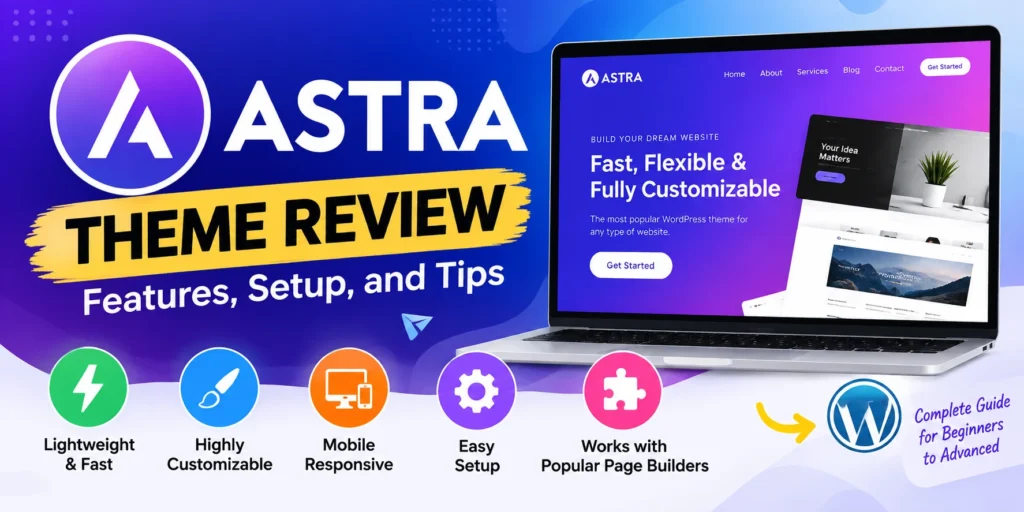
Astra Theme: A Practical Guide to Features, Setup, and Customization
Choosing a WordPress theme affects how your site looks, how visitors move through it, and how comfortably you can maintain it. The Astra theme is a popular option for people who want a flexible starting point for a blog, business website, portfolio, or online store. But a theme’s feature list alone cannot tell you whether it suits your project. Your editor, plugins, hosting, and design needs all matter too.
This guide explains what Astra does, what the free version includes, when Astra Pro may be useful, and how an Astra child theme fits into a customization plan. It also walks through a practical setup process and points out common decisions that can make a site harder to manage later.
What Is the Astra Theme for WordPress?
Astra is a WordPress theme developed by Brainstorm Force and listed in the WordPress.org theme directory. Like other themes, it controls presentation: elements such as the site header, navigation, page layout, typography, and blog design. WordPress content and plugins provide much of the site’s underlying functionality.
The Astra theme listing on WordPress.org describes it as a theme that works with page builders and is suitable for a range of site types, including business and ecommerce websites. That broad positioning makes it a general-purpose theme rather than a design created for just one niche.
Astra can be a reasonable fit if you want to adjust your site’s appearance without building a theme from scratch. You can start with a simple layout, then refine the header, colors, typography, and content areas. If you prefer a more visual starting point, you can explore starter designs, but treat them as a foundation: imported layouts still need your own content, accessibility checks, and testing.
What a theme does—and what it does not do
A WordPress theme mainly determines how content is presented. It does not automatically provide everything a finished site needs. For example, a theme does not replace:
- A backup plan and security maintenance.
- Useful, accurate page content.
- Careful image selection and optimization.
- Payment, booking, or membership systems, which usually require plugins or external services.
- Performance testing on your actual hosting and configuration.
That distinction helps set realistic expectations. A lightweight theme can be one part of a fast website, but it cannot compensate for oversized images, slow hosting, or a large stack of unnecessary plugins.
Astra Theme Features: What to Consider
The free Astra theme offers a starting set of design and layout controls. Its options and labels can change as the product evolves, so check the current theme settings and documentation when following a specific setup guide. Astra’s official documentation includes instructions for installation, customization, headers, footers, and other theme tasks.
Layout and customization
When assessing a theme, begin with the pages your site needs. A small company might need a homepage, service pages, an about page, and a contact page. A publisher may care more about category archives, article readability, and related navigation. An online shop needs product pages and a usable cart and checkout experience.
For each page type, check whether the theme lets you control the details that matter to you: content width, sidebar use, spacing, header behavior, and the presentation of titles and featured images. Do not assume every visual element is a theme setting. Some may come from the block editor, a page builder, or a plugin.
Page builder compatibility
Astra is often considered by users building with the WordPress block editor or a page builder. Compatibility can make it easier to combine theme-level layout choices with page-specific design. Still, choose your editor deliberately. Using multiple page-building systems for the same site can create extra work and make future changes harder.
Before committing, create a sample page and check the handoff between the theme and your editor. Look for consistent fonts, button styles, content widths, and mobile layouts. If both tools offer global design controls, decide which one will be the source of truth for each setting.
Performance and search visibility
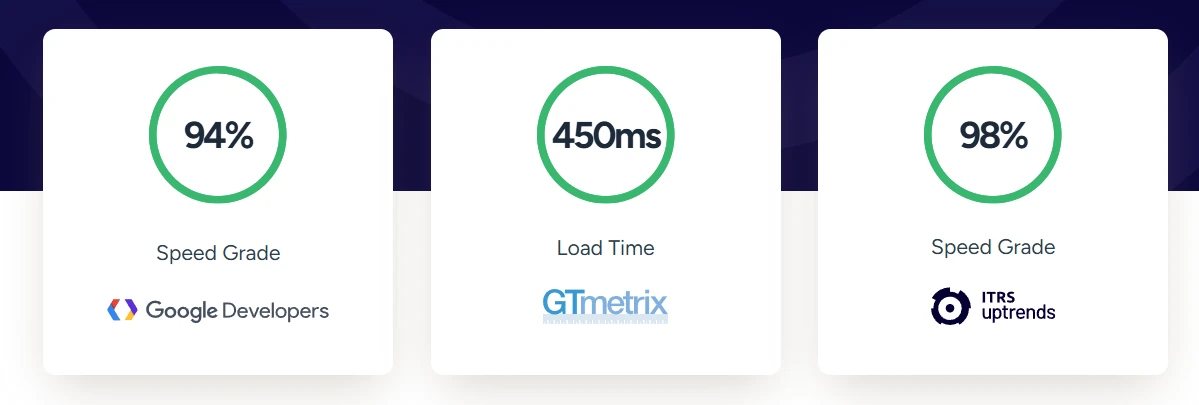
Astra is marketed as a performance-focused theme, but a performance claim is not a guarantee for your site. Actual results depend on the whole setup: hosting, caching, plugins, fonts, images, scripts, and the page itself. Test representative pages after adding your real content rather than relying on a clean demo.
Search visibility also depends on more than the theme. Google recommends creating helpful, reliable content for people and making pages useful to visitors. A theme can support readable layouts and navigation, but it cannot supply original expertise or make thin content valuable. See Google’s guidance on helpful, people-first content.
Astra Free vs. Astra Pro
Astra Pro is an optional paid add-on that extends the free theme with additional design and site-building features. The exact features, bundles, licensing, and prices may change, so confirm the current plan details with the vendor before purchasing. The official Astra Pro setup guide explains that Pro is installed as an add-on plugin alongside the Astra theme.
| Consideration | Astra free | Astra Pro |
|---|---|---|
| Best starting point | Basic sites and people evaluating the theme | Sites needing particular premium controls |
| Cost | Available without purchasing Astra Pro | Paid; check the current plan and renewal terms |
| Setup | Install and activate the theme | Install the theme and the Pro add-on plugin |
| Decision test | Does the free feature set meet the project’s needs? | Will a specific Pro feature save time or enable a required layout? |
A sensible way to decide is to list the features you actually need before comparing plans. For example, if your current site only needs a standard header and a straightforward blog layout, start with the free version and see whether it handles the job. If you need a particular Pro capability—such as a site-wide template or more advanced header controls—compare that feature against the current documentation and pricing.
Astra Pro does not replace every other product in the Astra ecosystem. The vendor’s documentation notes that some template access is tied to separate toolkit plans. Read the included-feature list carefully so you know what a purchase covers.
How to Set Up the Astra Theme
Use this sequence for a fresh site or a staging copy of an existing one. If your site is live, take a backup and check your current theme’s settings before switching. A theme change can affect layouts even when posts and pages remain in WordPress.
- Confirm your starting point. Check that WordPress is working, your site has a recent backup, and any important changes can be tested safely. For an existing site, use a staging environment when available.
- Install Astra. In your WordPress dashboard, open the themes area, search for Astra in the WordPress.org directory, then install and activate it. WordPress’s theme documentation explains the general theme installation and preview process.
- Preview the site. Review the homepage, posts, pages, archives, and any custom post types. Check desktop and mobile widths. Do not assume the theme preview reflects how every page will look with your existing plugins and content.
- Set the basics first. Add your logo and site identity, choose a small set of colors and fonts, and decide how the header, navigation, and footer should work. A consistent design is easier to maintain than many one-off exceptions.
- Adjust page layouts. Decide whether key pages should use a sidebar, a full-width content area, or another available layout. Keep article text comfortably readable and avoid filling every empty area with widgets.
- Add only needed extensions. If you want a feature that requires Astra Pro, confirm it is included in your plan, install the add-on plugin, and activate only the modules you intend to use.
- Test the full experience. Visit forms, menus, product pages, checkout, and other important flows. Check that buttons are easy to find, menus work on touch screens, and text remains legible at narrow widths.
- Measure and refine. Test real pages for speed and usability after your content and plugins are in place. Optimize large images and remove features you are not using.
When Should You Use an Astra Child Theme?
An Astra child theme is a separate theme that inherits Astra’s functionality and appearance while providing a place for custom code or template changes. The WordPress developer documentation explains that child themes let you modify a parent theme without editing its files directly, which helps preserve customizations when the parent theme is updated.
A child theme is most relevant when you have changes that cannot be handled through the Customizer, block editor, page builder, or a suitable plugin. Examples include custom PHP hooks, template overrides, or CSS that you need to keep organized and version-controlled.
You may not need one for ordinary settings such as changing a logo, adjusting colors, or choosing a layout. Those choices can usually be made through the available site controls. Before creating a child theme, identify exactly what code needs to live there and who will maintain it.
Basic child theme checklist
- Use Astra as the parent theme and ensure the child theme references the correct parent theme folder.
- Keep custom styles and functions separate from the parent theme files.
- Test after parent theme updates, especially if you override templates.
- Document custom code so another site maintainer can understand why it exists.
- Keep a backup and make changes in staging when working on a live site.
For the technical details of child theme structure and customization, use the WordPress Theme Handbook’s child theme guide. A child theme is not a magic compatibility shield: custom code can still need updates when WordPress, Astra, or a plugin changes.
Tips for Getting More from Astra
- Start with the reader’s task. Make the most important action on each page easy to find, whether that is reading an article, contacting your business, or browsing products.
- Keep typography restrained. Use a small, consistent type scale and check that body text is readable on a phone.
- Use starter designs selectively. Importing a template can save setup time, but remove demo pages, placeholder text, and sections that do not serve your audience.
- Set up global styles early. Consistent buttons, headings, and colors help the site feel coherent and make later updates simpler.
- Test with real content. Long headings, wide tables, portrait images, and embedded media can behave differently from sample content.
- Keep the plugin stack purposeful. Every plugin adds maintenance and may affect site behavior. Retain extensions that support a real need.
- Check the mobile menu. Verify that visitors can open, navigate, and close it comfortably, and that important links remain visible.
- Review accessibility basics. Use descriptive link text, meaningful heading order, sufficient color contrast, and labels for forms.
Common Astra Theme Mistakes to Avoid
- Expecting the theme to make the site fast by itself. Hosting, image sizes, third-party scripts, and plugin choices also affect performance. Measure the site after it is built.
- Buying Astra Pro before identifying a need. First name the feature you want and confirm it is in the current plan. Avoid paying for a capability that will remain unused.
- Editing parent theme files directly. Direct edits can be overwritten by updates. Use supported customization controls or an appropriate child theme for code changes.
- Mixing design systems without a plan. When both a page builder and theme controls set colors or spacing, inconsistent results can follow. Choose where global settings belong.
- Importing a demo and publishing it unchanged. Placeholder content, unused pages, and irrelevant navigation can confuse visitors. Treat starter content as a draft.
- Ignoring less common page types. Check search results pages, category archives, 404 pages, and shop flows—not just the homepage.
- Adding custom CSS without documentation. Record what a rule changes and why. Otherwise, future updates may turn a small tweak into a debugging task.
Frequently Asked Questions
Is the Astra theme free?
Astra is available in the WordPress.org theme directory as a free theme. Astra Pro is a separate paid add-on. Check the current listing and vendor plans for up-to-date details about features and pricing.
Is Astra suitable for beginners?
It can be, particularly if you start with the standard theme controls and build a small number of pages first. Beginners should avoid installing many extensions at once. Learn how the theme, editor, and plugins each affect the page before adding more tools.
Does Astra work with WooCommerce?
Astra is presented by its developer as compatible with ecommerce tools, including WooCommerce. Your store’s final behavior also depends on WooCommerce, payment and shipping extensions, and any customizations. Test product, cart, and checkout pages before launch.
Do I need Astra Pro?
Not necessarily. Start by identifying the layout or feature you cannot achieve with the free theme. If a specific Pro feature is required, check the current plan documentation and weigh its cost against the time or functionality it provides.
Should I create an Astra child theme?
Create one if you need custom code or template changes that should remain separate from Astra’s files. For routine visual settings, use the theme’s available controls. A child theme still requires maintenance and testing.
Will Astra automatically improve my Google rankings?
No theme can guarantee rankings. Astra may provide layout and customization options, but useful content, technical accessibility, site experience, and other factors matter. Google’s guidance emphasizes content that genuinely helps its intended readers.
Can I change themes later?
Yes, but a theme switch can change how pages are displayed and may affect theme-specific settings or layouts. Preview the new theme, back up the site, and inspect important pages before activating it on a live website.
Is Astra a good choice for every website?
No single theme fits every project. Astra may suit people looking for a flexible multipurpose theme, but compare it with alternatives using your own requirements: editor preference, layout needs, ecommerce details, support expectations, and maintenance comfort.
Conclusion
The Astra theme is a flexible WordPress starting point for blogs, business sites, portfolios, and stores. Its value depends on whether its layout controls and integrations match the way you plan to build and maintain your website. Start with the free version if it covers your requirements, then consider Astra Pro only when a particular premium feature would solve a real problem.
Plan custom code carefully, and use an Astra child theme when you need a maintainable place for code or template changes. Above all, test your actual pages on mobile and desktop, and make decisions based on your visitors’ needs. A theme supports a good website; clear content, thoughtful design, and ongoing care make it useful.

Leave a Reply