
Overview
WoodMart Theme: A Practical Guide for WordPress Stores
Choosing a WooCommerce theme is more than picking a visual style. The theme affects how shoppers browse products, use filters, view product details, and move through checkout. The WoodMart theme is designed for WordPress stores and offers a broad set of ecommerce layouts and customization tools. That breadth can save time for some store owners, but it also means there are more settings to understand.
This guide explains what WoodMart does, who may benefit from it, and what to check before building a store around it. You’ll find an overview of its WooCommerce features, a step-by-step setup process, practical performance and accessibility advice, and answers to common questions about the WoodMart theme for WordPress.
What Is the WoodMart Theme for WordPress?
WoodMart is a commercial WordPress theme developed by XTemos, with a focus on WooCommerce shops. It provides design controls and store-specific tools alongside the standard theme role of controlling how website content is presented. WoodMart’s official documentation covers installation, theme settings, header building, shop features, and custom layouts.
The theme is intended for a range of ecommerce projects, from stores with a small catalog to shops that need more elaborate product browsing. A retailer might use it to organize product categories, add filters, or create a tailored product page. The exact tools available depend on the theme version, WordPress setup, WooCommerce configuration, and any required plugins.
WoodMart includes many settings in one place. Its Theme Settings panel covers global appearance, typography, blog and shop presentation, performance options, and other site-wide behavior. This centralization can be useful, but it can also create a learning curve. Before changing a setting, understand whether it applies globally or only to one layout or template.
What a WooCommerce theme can and cannot do
A theme influences presentation and helps shape the shopping experience. It does not replace store operations such as product data management, payment processing, shipping configuration, taxes, inventory, or customer support. WooCommerce and its extensions handle much of the store’s functionality, while your theme displays it.
That distinction matters when evaluating an “all-in-one” theme. A built-in design feature may reduce the need for a separate plugin for that particular job, but you still need to check how it works, what it depends on, and whether it suits your checkout and fulfillment process.
WoodMart Theme Features: What Store Owners Should Evaluate
WoodMart has a wide feature set, so it helps to assess features in terms of customer tasks. Ask whether a shopper can quickly find a product, understand its options, judge whether it fits their needs, and complete an order without confusion.
Product pages and product variations
Product pages need to present the information a buyer uses to make a decision. Depending on the product, that may include photos, specifications, sizing, shipping information, reviews, availability, and clear purchase controls. WoodMart provides configurable product layouts and supports product variation presentations such as swatches, according to its documentation.
Swatches can make choices such as color or size easier to scan than a plain dropdown. They are most useful when the variation is visual and the shopper can understand what each option represents. Add accessible labels and make sure unavailable options are clearly indicated. A stylish selector is not helpful if keyboard users or screen readers cannot identify the selected value.
Shop archives, categories, and filters
As a catalog grows, product discovery becomes a design problem. Category pages should make it easy to browse and narrow results without overwhelming shoppers. WoodMart offers configurable product archive layouts and store controls, including options for filters and category presentation.
Filters should reflect how customers actually compare items. A clothing shop might offer size, color, and fit; a hardware store might use measurements, material, and compatibility. Avoid displaying a long list of filters that do not help customers make a choice. On mobile, check whether filter controls are easy to open, adjust, and clear.
Header builder and navigation
Headers typically hold the logo, main navigation, search, account links, and cart access. WoodMart’s Header Builder lets you arrange header elements and rows. That flexibility can help a store create a compact mobile header or a more detailed desktop navigation area.
Keep navigation focused. Group products using labels shoppers understand, and avoid putting every category in the top-level menu. If a large catalog needs a mega menu, organize it around recognizable departments and test the menu with a keyboard and touch screen.
Custom layouts and supported editors
WoodMart’s Layout Builder can be used to create templates for areas such as product pages and archives. The theme documentation describes support for editors including Gutenberg, Elementor, and WPBakery in relevant contexts. Editor and template compatibility can vary, so choose one main editing workflow and verify it against the specific layout you want to build.
Using several page builders at once can make the site harder to maintain. Before designing templates, decide which editor will handle ordinary pages and which tools—if any—will be used for store templates. Consistency makes future changes easier to understand.
Prebuilt websites and design controls
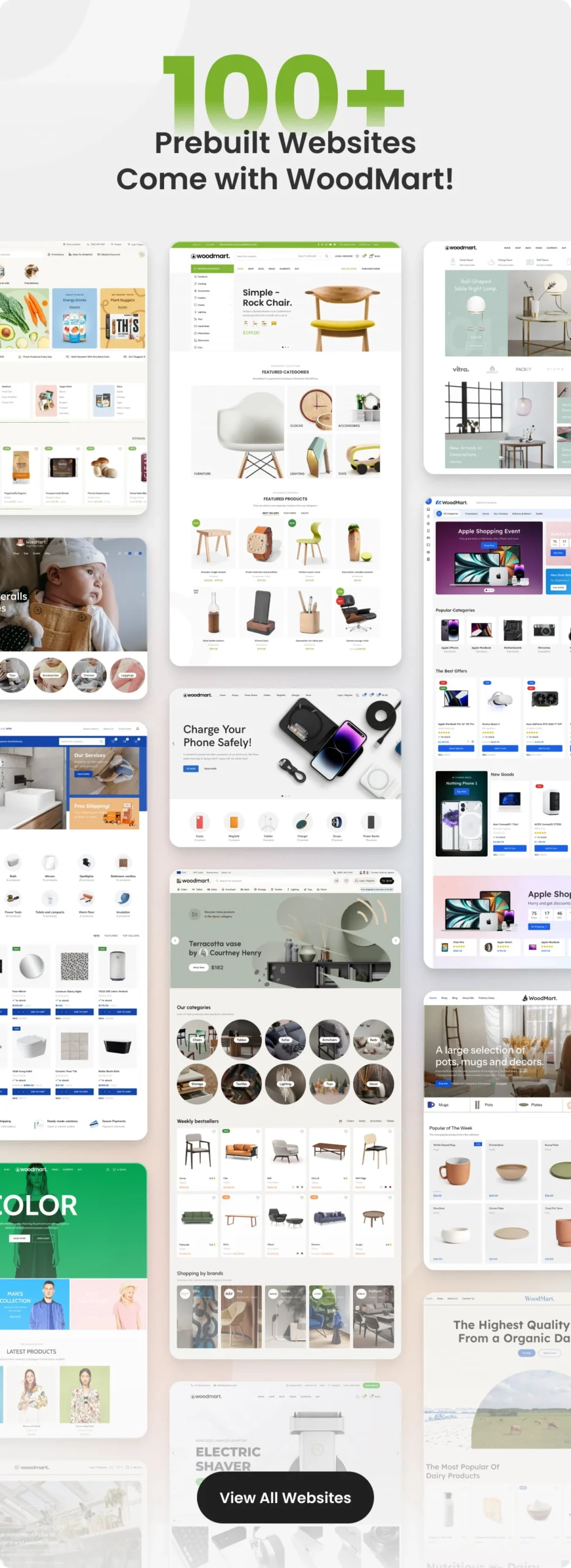
Prebuilt websites can help you get a first draft online faster. They may include sample pages, navigation, layouts, and store settings. Treat imported content as starter material rather than finished work: replace placeholder copy, check images and product details, remove unnecessary pages, and ensure the design reflects your own brand.
Global design settings can help keep colors, typography, buttons, and spacing consistent. Set those foundations before fine-tuning individual pages. If every page gets a separate style treatment, small adjustments later can become time-consuming.
Is WoodMart the Right Theme for Your Store?
WoodMart may suit store owners who want a theme with extensive WooCommerce layout controls and are willing to learn its settings. It may be less suitable for someone who wants a very minimal theme, has no need for advanced store layouts, or prefers to avoid a large configuration surface.
| Your situation | What to consider |
|---|---|
| You have a growing product catalog | Check whether its category layouts and filters fit how customers browse your products. |
| You want to customize product templates | Review the Layout Builder and confirm it supports your chosen editor and workflow. |
| You need a simple brochure site | A dedicated ecommerce theme may include more store controls than you need. |
| You prioritize a lean setup | Compare the features you need with the amount of configuration and maintenance involved. |
| You already run a WooCommerce store | Test the theme on staging and inspect your critical store flows before switching. |
Compare themes using your actual needs rather than a list of demo features. A feature is valuable when it improves a real customer task or saves your team meaningful maintenance effort. For stores considering WoodMart alongside other options, the WPGPLTop WordPress themes and plugins catalog provides a place to browse the site’s available products. Check each product’s details and support terms before making a purchase decision.
How to Set Up the WoodMart Theme
Plan the build before importing a demo or changing a live store. If your website already takes orders, use a staging site when possible. A theme change can alter the appearance of templates and shop pages, so review the customer journey before publishing changes.
- Review your hosting and WordPress setup. Check the current WoodMart requirements in the official documentation, confirm your WordPress and PHP versions meet them, and ensure your site uses HTTPS. Resolve compatibility issues before installation.
- Back up the site. Save a full backup of files and the database. For an existing store, note any custom code, theme settings, and plugin dependencies that could be affected by a change.
- Install the theme package correctly. Follow the installation instructions for the version and source you obtained. Some commercial theme downloads include documentation and supplementary files in the package; WordPress needs the installable theme archive, not necessarily the whole bundle.
- Install required companion plugins. Review the theme’s setup instructions and install only the components required for the features you plan to use. Avoid activating optional plugins just because they are offered during setup.
- Choose a starter design deliberately. Select a design close to your store’s structure and audience. Before importing, check what content and settings will be added, and whether the import can be limited to selected parts.
- Set up the header and navigation. Add the logo, search, account, cart, and menu elements your customers need. Check desktop and mobile layouts separately.
- Configure global styles. Set fonts, colors, button styles, and spacing. Keep contrast readable, especially for product prices, sale labels, and action buttons.
- Build representative product pages. Configure one simple product and one variable product, if applicable. Check product images, variation selection, stock messages, shipping details, and add-to-cart behavior.
- Review shop categories and filters. Test the archive layout with real products. Confirm filters return sensible results and that shoppers can reset them.
- Test the purchase journey. Add items to the cart, use discount codes if supported, enter test checkout information, and confirm order emails and payment settings in the appropriate test mode.
- Check mobile usability and performance. Test common devices or responsive widths. Review image sizes and scripts, then assess representative pages with a performance tool after real content has been added.
- Publish only after a final review. Check links, menus, page titles, forms, product availability, and error states. Keep a rollback plan for the theme and settings.
WoodMart Performance and Customer Experience
A theme’s performance options can help manage how assets and visual elements load, but speed depends on the whole site. Hosting, caching, images, fonts, analytics, chat widgets, and plugins all contribute. A demo may feel faster or slower than your production store because the content and integrations differ.
WoodMart includes performance-related settings, and its documentation lists controls for areas such as CSS and JavaScript loading, fonts and icons, lazy loading, and other options. Change these carefully. Optimizations can interact with caching or script-minification tools, so verify product galleries, menus, filters, cart updates, and checkout after each meaningful change.
- Resize product images to the dimensions your layouts use.
- Compress images while keeping product details clear.
- Use only the plugins and third-party scripts your store needs.
- Test category, product, cart, and checkout pages—not only the homepage.
- Change one performance setting at a time and check for regressions.
- Clear caches when layout or asset settings change.
Performance is part of usability: shoppers should be able to browse and act without unnecessary waiting. But avoid chasing a single lab score at the expense of store functions. A quick page that breaks variation selection or cart updates is not a successful optimization.
Accessibility and Mobile Best Practices
Store design should work for people using different devices and interaction methods. WooCommerce’s theme design guidance emphasizes accessibility and usable shop interfaces. A theme provides tools, but your content, colors, customizations, and testing also affect whether a store is accessible.
- Use clear text labels for icons such as search, wishlist, and cart.
- Check that menus and dialogs can be operated with a keyboard.
- Use visible focus styles so keyboard users can track their location.
- Maintain readable contrast for text, badges, and buttons.
- Give product images meaningful alternative text when they communicate product information.
- Make form errors specific and easy to find.
- Test filters and variation selectors on touch screens and with keyboard navigation.
For technical background, consult the WooCommerce theme design guidance and the WordPress Theme Handbook accessibility guide. Neither a feature checklist nor a theme label substitutes for checking the actual store experience.
Tips for Managing WoodMart Settings
- Keep a settings record. Document major global choices and any custom templates so another administrator can understand how the store is assembled.
- Back up before broad changes. The WoodMart documentation describes exporting theme settings. Keep a backup before importing, resetting, or making major configuration changes.
- Use presets for genuine variations. If different product groups need different layouts, conditional settings can help. Keep the number of exceptions manageable.
- Use meaningful product attributes. Filters are only useful when product data is accurate and consistently entered.
- Keep calls to action consistent. Use familiar labels for adding to cart, viewing details, and contacting support.
- Audit imported content. Remove demo products and placeholder sections before launch.
- Plan updates. Keep WordPress, WooCommerce, WoodMart, and extensions maintained, testing important flows after updates.
- Track store tasks, not just design tasks. Confirm shipping, tax, returns, inventory, privacy notices, and customer emails are configured for your business.
Common WoodMart Mistakes to Avoid
- Turning on every feature. More options do not automatically create a better store. Enable only what supports a real customer need.
- Importing a demo without reviewing the result. Demo content can add pages, menus, products, and settings that do not fit your business.
- Building before deciding on product data. Filters, swatches, and category navigation rely on consistent product attributes. Plan the catalog structure first.
- Using multiple editors without a clear role. Mixing editing systems can make layouts harder to maintain. Define which tool handles ordinary pages and which handles store templates.
- Assuming the theme guarantees speed. Measure your own site and optimize its content, hosting, images, and plugin stack.
- Ignoring mobile cart and checkout behavior. A polished homepage does not guarantee a usable purchase flow on a phone.
- Making global changes without a backup. Site-wide settings can affect many pages. Save a copy of your configuration before substantial edits.
- Skipping update testing. After updates, check representative product pages, menus, filters, and checkout rather than assuming nothing changed.
Frequently Asked Questions
Is WoodMart a WordPress theme or a WooCommerce plugin?
WoodMart is a WordPress theme designed with WooCommerce store layouts and features. WooCommerce is the ecommerce plugin that provides core store functionality such as products, cart, and checkout.
Is the WoodMart theme suitable for beginners?
It can be used by beginners, but its many settings may take time to learn. Start with the essential store structure, use one editing workflow, and test each part before adding more customization.
Can I use WoodMart without Elementor?
WoodMart documentation describes features for Gutenberg and other supported editors as well as Elementor. Check the current documentation for the specific template or feature you plan to use, since availability can vary by editor and context.
Does WoodMart include product filters and variation swatches?
WoodMart documentation describes shop features such as product filters and variable product swatches. Configure them around accurate product data, then test that shoppers can understand and use them on both desktop and mobile.
Will WoodMart make my WooCommerce store fast?
No theme can guarantee the speed of a complete store. WoodMart includes performance settings, but results depend on hosting, images, plugins, scripts, caching, and configuration. Measure your own product and checkout pages.
Can I use a WoodMart child theme?
Yes. A child theme is appropriate when you need code customizations that should remain separate from the parent theme. Follow the vendor’s child theme setup guide and test customizations after updates.
Can I change to WoodMart on an existing store?
Usually you can change the active theme, but layouts and settings may change. Back up the site, test on staging if possible, and inspect product pages, archives, cart, checkout, and account pages before going live.
Is WoodMart a good fit for a small catalog?
It can work for a small store, but compare its feature set and configuration effort with your needs. If you only need a simple product catalog, a more minimal theme may be easier to maintain.
Conclusion
The WoodMart theme offers WordPress store owners a broad set of WooCommerce-oriented layouts, controls, and product browsing features. It may be a useful fit when you want to shape product pages, category archives, and navigation in detail. Its flexibility also asks for planning: choose an editing workflow, organize product data, and enable only the features that help customers.
Before committing, review the current documentation, test the theme with representative products, and check your store’s mobile experience and checkout flow. Keep settings backed up, measure performance on your own site, and revisit accessibility as you customize. The right theme is the one that helps your customers shop clearly while remaining manageable for the people who run the store.
SEO & Metadata Review
We audited the template rendering logic to ensure semantic HTML5 tags and schema compliance.
<meta name="description" content="Detailed review of software features, performance, security, and best practices.">
<link rel="canonical" href="https://example.com/">
- Proper title and meta description hooks present.
- Clean URL structure and canonical tags applied.
- Image alt text optimizations implemented in media queries.